About
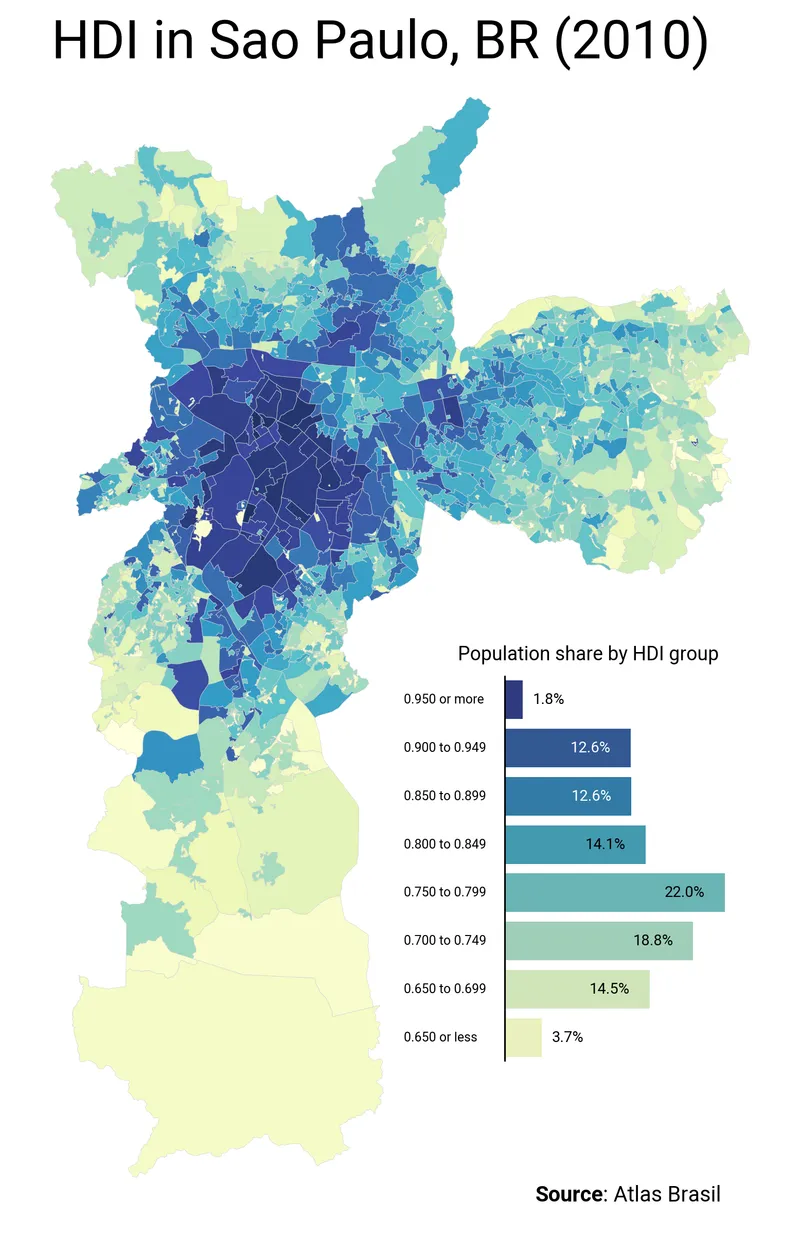
This plot is a choropleth map combined with a barplot for the legend.
It has been originally designed by Vinicius Oike Reginatto in R. Here is a reproduction in Python by Joseph Barbier.
As a teaser, here is the plot we’re gonna try building:

Libraries
For creating this chart, we will need a whole bunch of libraries!
- matplotlib: to customize the appearance of the chart
- geopandas: to handle make the map
- pandas: to handle the data
- seaborn: for the barplot
- pypalettes: for the colors
- highlight_text: for the annotations
- pyfonts: for customizing the font
import geopandas as gpd
import matplotlib.pyplot as plt
import seaborn as sns
import pandas as pd
from pypalettes import load_cmap
from highlight_text import fig_text, ax_text
from pyfonts import load_google_fontDataset
We need two datasets:
- one for the map with the polygons and the measure of interest (in this case the HDI)
- one for the bar chart, which we will deduce from the first by doing a few calculations.
path = "https://raw.githubusercontent.com/holtzy/The-Python-Graph-Gallery/master/static/data/saopaulo.geojson"
path = "../../static/data/saopaulo.geojson"
df = gpd.read_file(path)
df.head()| code_udh | HDI | pop | geometry | |
|---|---|---|---|---|
| 0 | 1355030801001 | 0.866 | 20388.0 | POLYGON ((-46.53789 -23.56245, -46.53799 -23.5... |
| 1 | 1355030801002 | 0.870 | 21937.0 | POLYGON ((-46.54193 -23.54086, -46.54212 -23.5... |
| 2 | 1355030801003 | 0.790 | 10536.0 | POLYGON ((-46.51514 -23.55757, -46.51534 -23.5... |
| 3 | 1355030801004 | 0.816 | 27925.0 | POLYGON ((-46.5326 -23.5737, -46.53276 -23.574... |
| 4 | 1355030801005 | 0.820 | 6817.0 | POLYGON ((-46.50676 -23.57095, -46.50697 -23.5... |
Now we create the dataset for the barplot:
atlas = df[["HDI", "pop"]].copy()

bins = [0.0, 0.65, 0.699, 0.749, 0.799, 0.849, 0.899, 0.949, 1.0]
labels = [
    "0.650 or less",
    "0.650 to 0.699",
    "0.700 to 0.749",
    "0.750 to 0.799",
    "0.800 to 0.849",
    "0.850 to 0.899",
    "0.900 to 0.949",
    "0.950 or more",
]

atlas["group_hdi"] = pd.cut(atlas["HDI"], bins=bins, include_lowest=True, labels=labels)

pop_hdi = atlas.groupby("group_hdi", observed=True)["pop"].sum().reset_index()
pop_hdi["share"] = (pop_hdi["pop"] / pop_hdi["pop"].sum()) * 100

pop_hdi["y_text"] = pop_hdi["share"] / 2
pop_hdi["label"] = pop_hdi["share"].round(1).astype(str) + "%"

pop_hdi| group_hdi | pop | share | y_text | label | |
|---|---|---|---|---|---|
| 0 | 0.650 or less | 415953.0 | 3.710661 | 1.855331 | 3.7% |
| 1 | 0.650 to 0.699 | 1620623.0 | 14.457362 | 7.228681 | 14.5% |
| 2 | 0.700 to 0.749 | 2106520.0 | 18.791984 | 9.395992 | 18.8% |
| 3 | 0.750 to 0.799 | 2460948.0 | 21.953789 | 10.976895 | 22.0% |
| 4 | 0.800 to 0.849 | 1576054.0 | 14.059768 | 7.029884 | 14.1% |
| 5 | 0.850 to 0.899 | 1417249.0 | 12.643090 | 6.321545 | 12.6% |
| 6 | 0.900 to 0.949 | 1409668.0 | 12.575460 | 6.287730 | 12.6% |
| 7 | 0.950 or more | 202658.0 | 1.807885 | 0.903943 | 1.8% |
Choropleth map
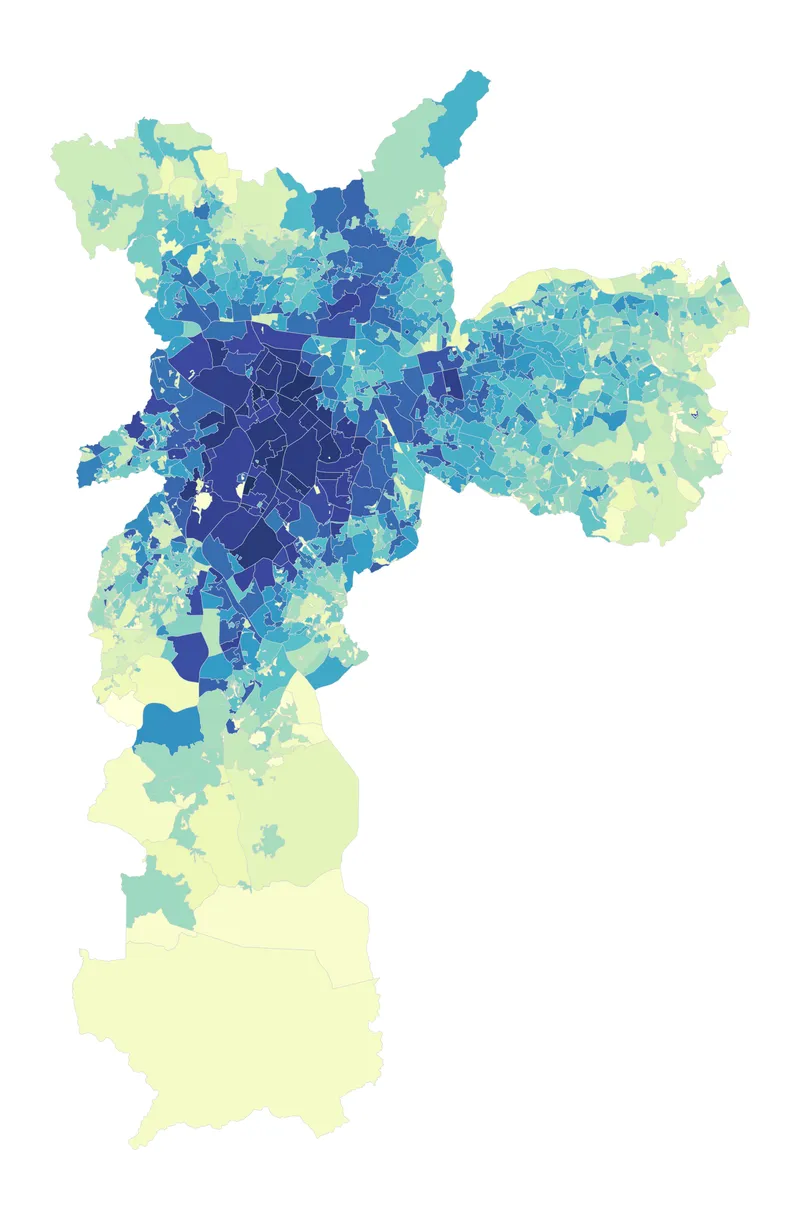
Creating the choropleth map is the easiest part:
- load the
YlGnBucolormap and specify that we want a continuous colormap - create a matplotlib figure with
plt.subplots(). - remove the axis
- use the
plot()method on thedfgeodataframe and specify the column to represent for the colors (here it's HDI)
palette_name = "YlGnBu"
cmap = load_cmap(palette_name, cmap_type="continuous")

fig, ax = plt.subplots(figsize=(10, 10), dpi=300)
ax.axis("off")
df.plot(ax=ax, column="HDI", cmap=cmap, edgecolor="lightgrey", linewidth=0.2, alpha=0.9)
plt.show()Barplot
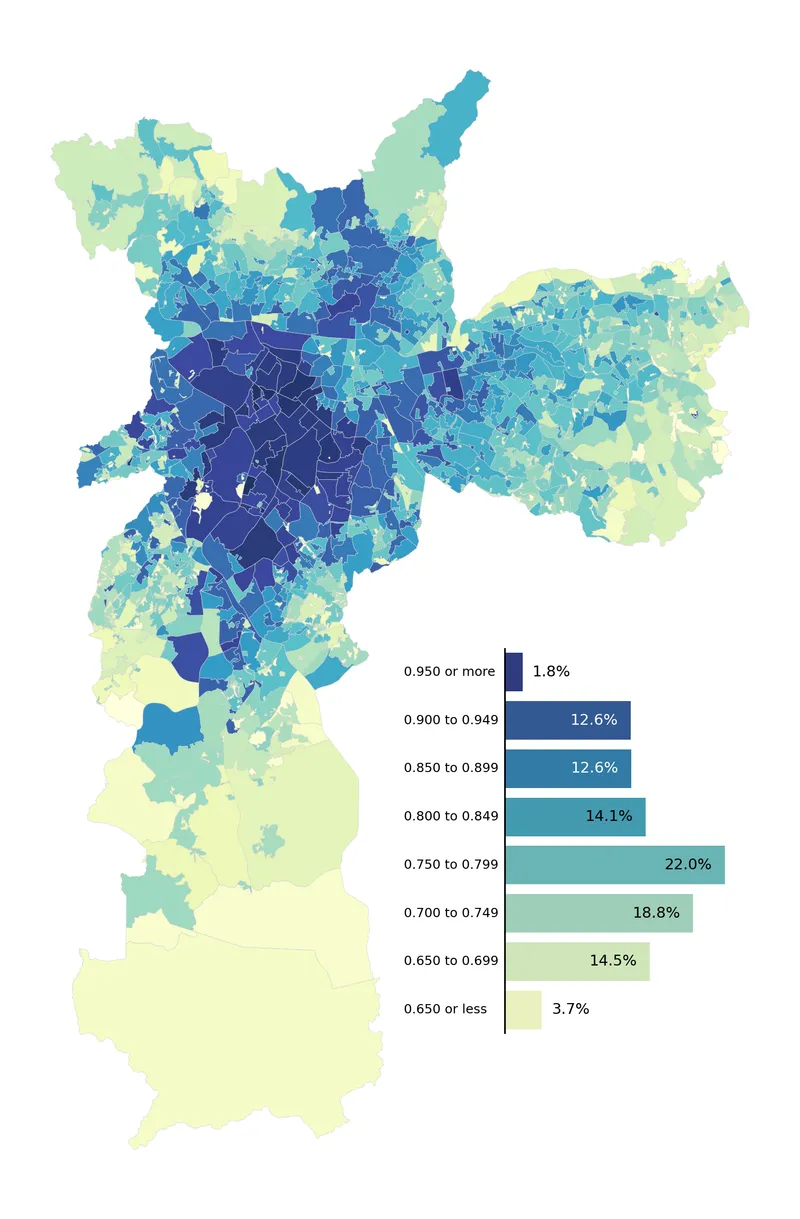
Adding the bar chart may seem a little tricky, but it's not.
The main thing is to add a mini graph inside the choropleth. To do this, we create it with :
subax = ax.inset_axes(bounds=(0.58, 0.22, 0.15, 0.25), transform=fig.transFigure)
boundsdesignates the location of this minicharttransformspecifies that the coordinates ofboundsare relative to the figure. You can read more about this in this article
Once we've done that, we use the barplot() function from seaborn and use a for loop to add labels with specific positions/colours to the barplot.
palette_name = "YlGnBu"
cmap = load_cmap(palette_name, cmap_type="continuous")

fig, ax = plt.subplots(figsize=(10, 10), dpi=300)
ax.axis("off")

# choropleth
df.plot(ax=ax, column="HDI", cmap=cmap, edgecolor="lightgrey", linewidth=0.2, alpha=0.9)

# barplot
mini_ax = ax.inset_axes(bounds=(0.58, 0.22, 0.15, 0.25), transform=fig.transFigure)
mini_ax.axis("off")
sns.barplot(
    data=pop_hdi,
    x="share",
    y="group_hdi",
    palette=palette_name,
    ax=mini_ax,
    hue="group_hdi",
    legend=False,
)
mini_ax.axvline(x=0, color="black")
mini_ax.invert_yaxis()

for index, row in pop_hdi.iterrows():
    x_pos = row["share"] - 6 if row["share"] > 4 else row["share"] + 1
    y_pos = index
    color = "white" if index in [5, 6] else "black"
    mini_ax.text(x_pos, y_pos, row["label"], color=color, size=7, va="center")
    mini_ax.text(-10, y_pos, row["group_hdi"], color="black", size=6, va="center")
plt.show()Annotations
The only thing missing here is some good annotations with a nice font.
For this we'll use the Roboto font and load it with pyfonts. Then we'll basically use the fig.text() function to add the text we want.
font = load_google_font("Roboto")
boldfont = load_google_font("Roboto", weight="bold")

fig, ax = plt.subplots(figsize=(10, 10), dpi=300)
ax.axis("off")

df.plot(ax=ax, column="HDI", cmap=cmap, edgecolor="lightgrey", linewidth=0.2, alpha=0.9)

subax = ax.inset_axes(bounds=(0.58, 0.22, 0.15, 0.25), transform=fig.transFigure)
subax.set_axis_off()
sns.barplot(
    data=pop_hdi,
    x="share",
    y="group_hdi",
    palette=palette_name,
    ax=subax,
    hue="group_hdi",
    legend=False,
)
subax.axvline(x=0, color="black")
subax.invert_yaxis()

for index, row in pop_hdi.iterrows():
    x_pos = row["share"] - 6 if row["share"] > 4 else row["share"] + 1
    y_pos = index
    color = "white" if index in [5, 6] else "black"
    subax.text(x_pos, y_pos, row["label"], color=color, size=7, va="center", font=font)
    subax.text(
        -10, y_pos, row["group_hdi"], color="black", size=6, va="center", font=font
    )

fig.text(
    x=0.5, y=0.87, s="HDI in Sao Paulo, BR (2010)", ha="center", size=25, font=font
)
fig.text(x=0.55, y=0.48, s="Population share by HDI group", size=9, font=font)
fig_text(
    x=0.6,
    y=0.14,
    s="<Source>: Atlas Brasil",
    size=10,
    font=font,
    highlight_textprops=[{"font": boldfont}],
)

plt.savefig(
    "../../static/graph/web-combine-choropleth-map-with-barplot.png",
    bbox_inches="tight",
    dpi=300,
)
plt.show()Going further
You might be interested in: